1.0.x to 1.4.x (inclusive)
To use this extension, you must have:
- An active CCAvenue Merchant Account, and
- The domain registered with CCAvenue must match your Paymenter domain, including the subdomain. If it doesn’t match, update your Paymenter domain or ask CCAvenue support to change it.
Installation
Paste the two following commands exactly as it is into your terminal where Paymenter is installed. If your Paymenter installation is in a different directory, navigate to that directory instead.Setup
- Open your Paymenter Admin Panel.
- In the left sidebar, scroll down and click Gateways.
- Click the New Gateway button.
- or directly visit by adding
/admin/gateways/createto the end of your billing panel URL.
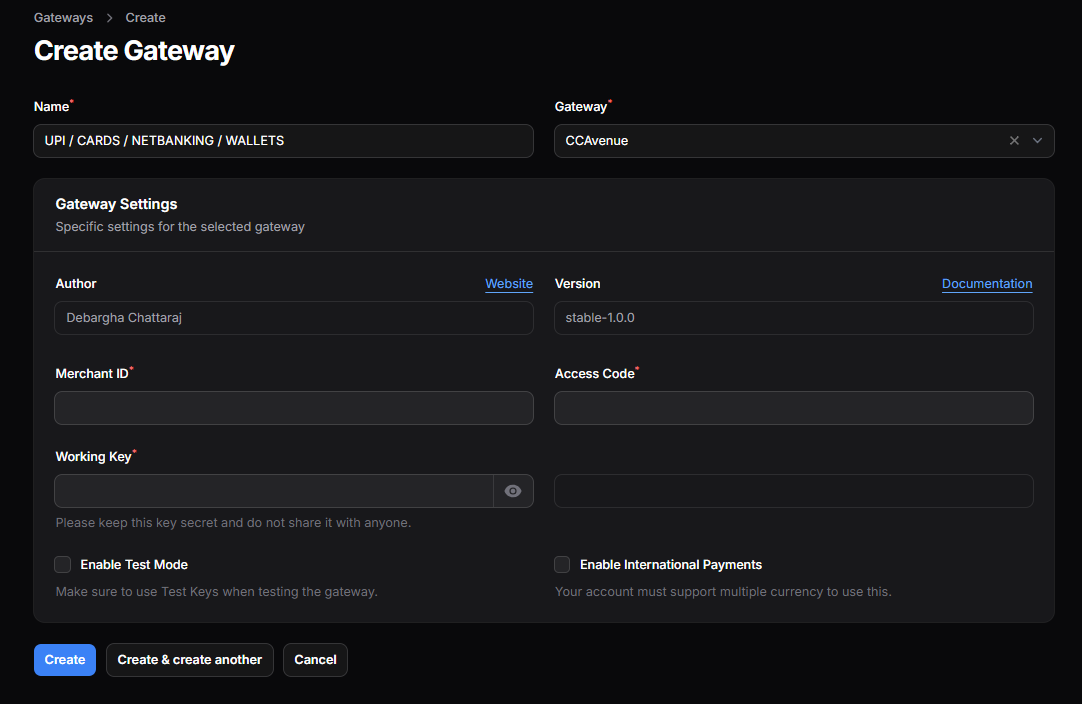
Gateway Configuration
Now you need to fill in all the required credentials. Below are the details for each field:Required Fields
-
Name: Enter what you want your customers to see. It’s better to use something that mentions the payment methods.
Recommended:
UPI / CARDS / NETBANKING / WALLETS - Gateway: Select CCAvenue. If you don’t see it, check the troubleshooting steps.
- Merchant ID, Access Code, Working Key: You can find these in your CCAvenue Merchant Dashboard. Put the exact values. These are production/live keys by default, but you may enter Test Keys if needed. If you do, make sure Test Mode is enabled.
Additional Fields
- Enable Test Mode: Check this if you are using Test Keys and want to test the gateway without real payments. Do not enable this on your live/public site.
- Enable International Payments: Check this if you want to accept payments in currencies other than INR.
Troubleshooting
Select your specific issue to view more information.CCAvenue not listed in Gateway dropdown
CCAvenue not listed in Gateway dropdown
Re-run the installation carefully. If it still doesn’t appear, fix file permissions as required by your webserver. See Paymenter documentation for the exact permission steps.
Merchant Authentication failed on payment page
Merchant Authentication failed on payment page
Either:
- Incorrect Merchant Credentials
Your Merchant ID, Working Key, or Access Code is not valid for the current mode.
Fix:- Re-enter the credentials from your CCAvenue Dashboard.
- Make sure you are using the right set of keys:
Test Mode OFF → Use Production Keys
Test Mode ON → Use Test Keys only
- Domain Mismatch
The domain registered in CCAvenue does not match your Paymenter billing domain.
Fix:- Update your Paymenter billing URL to the exact same domain registered in CCAvenue (including subdomain), OR
- Contact CCAvenue Support and ask them to update your merchant domain to the correct one.
- Double-check that everything is set up correctly,
- Paymenter is installed properly, and
- You are installing this extension on a supported version.
Support
If you have followed all troubleshooting steps and still face issues, you will need to contact me for further help. Before reaching out, make sure to collect your logs. To generate the logs, run the following command:- Through the Discord server
- Through email
Debugging
This step should only be done if the developer asks for it. Turning this on will expose sensitive data in your logs.
/var/www/paymenter/extensions/Gateways/CCAvenue/CCAvenue.php, line 18
Edit the file and set:
CCAvenue.php
These logs contain your credentials which are sensitive information. Treat the link as private. If you ever share the logs with someone you shouldn’t have, regenerate the Working Key from CCAvenue Dashboard.
Uninstallation
In case you want to uninstall, go to your Paymenter installation folder and delete the extension folder.~ Thank you for reading! Have a nice day.